GIF Compressor for Discord
Compress GIFs for Discord locally, check each result against a 20 MB or custom target, preview animation, and download. Free, with no account required.
Drop up to 5 GIFs here
Up to 5 .gif files, 50 MB each and 100 MB total. Nothing is uploaded.
One GIF, two modes, a 0.5 MB budget
A real result from this browser compressor. This sample already fits the free-chat reference; a smaller 0.5 MB budget shows the difference between the modes. Your GIF may compress differently.
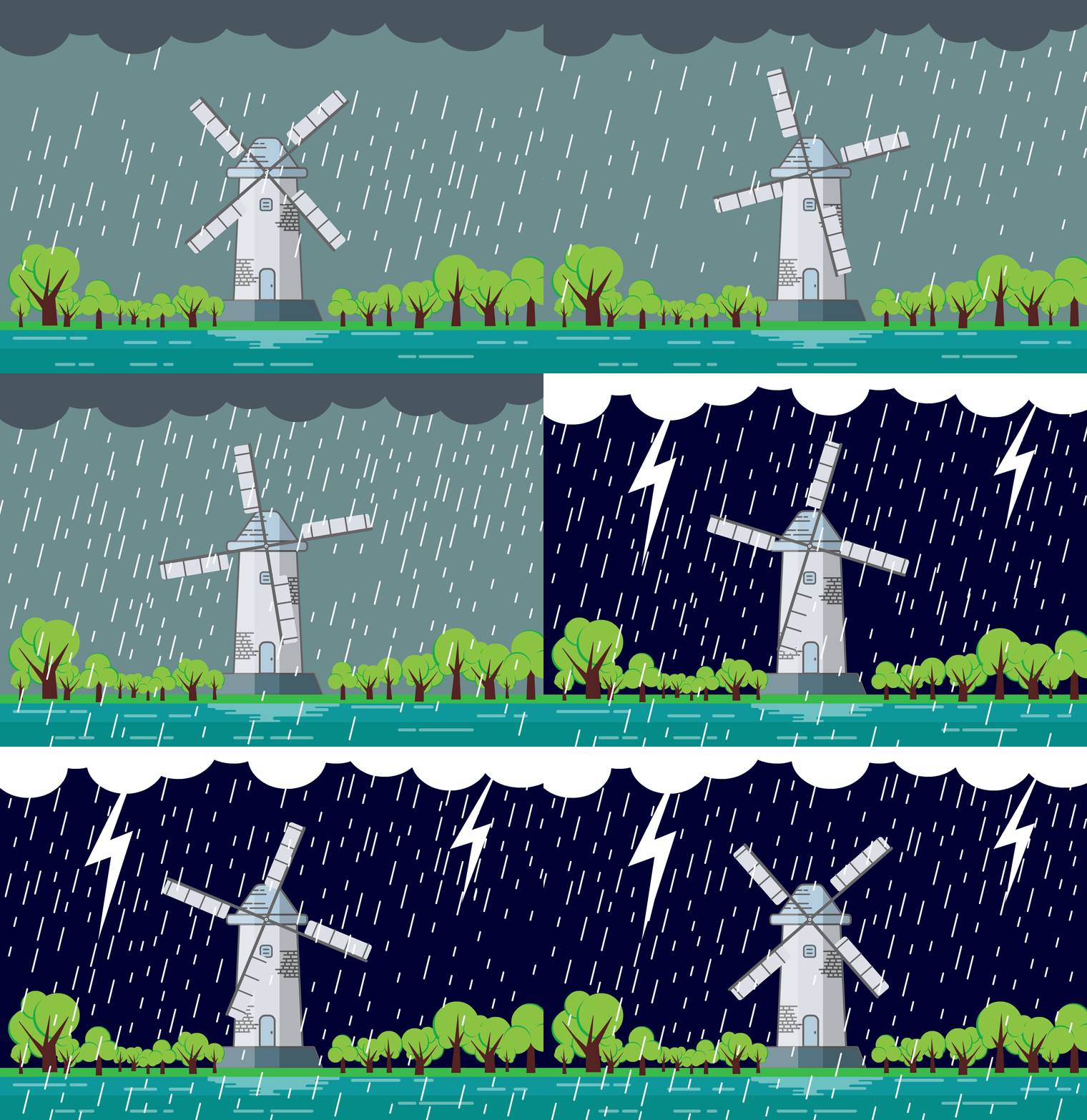
Original GIF
1,179,255 bytes
Above 0.5 MB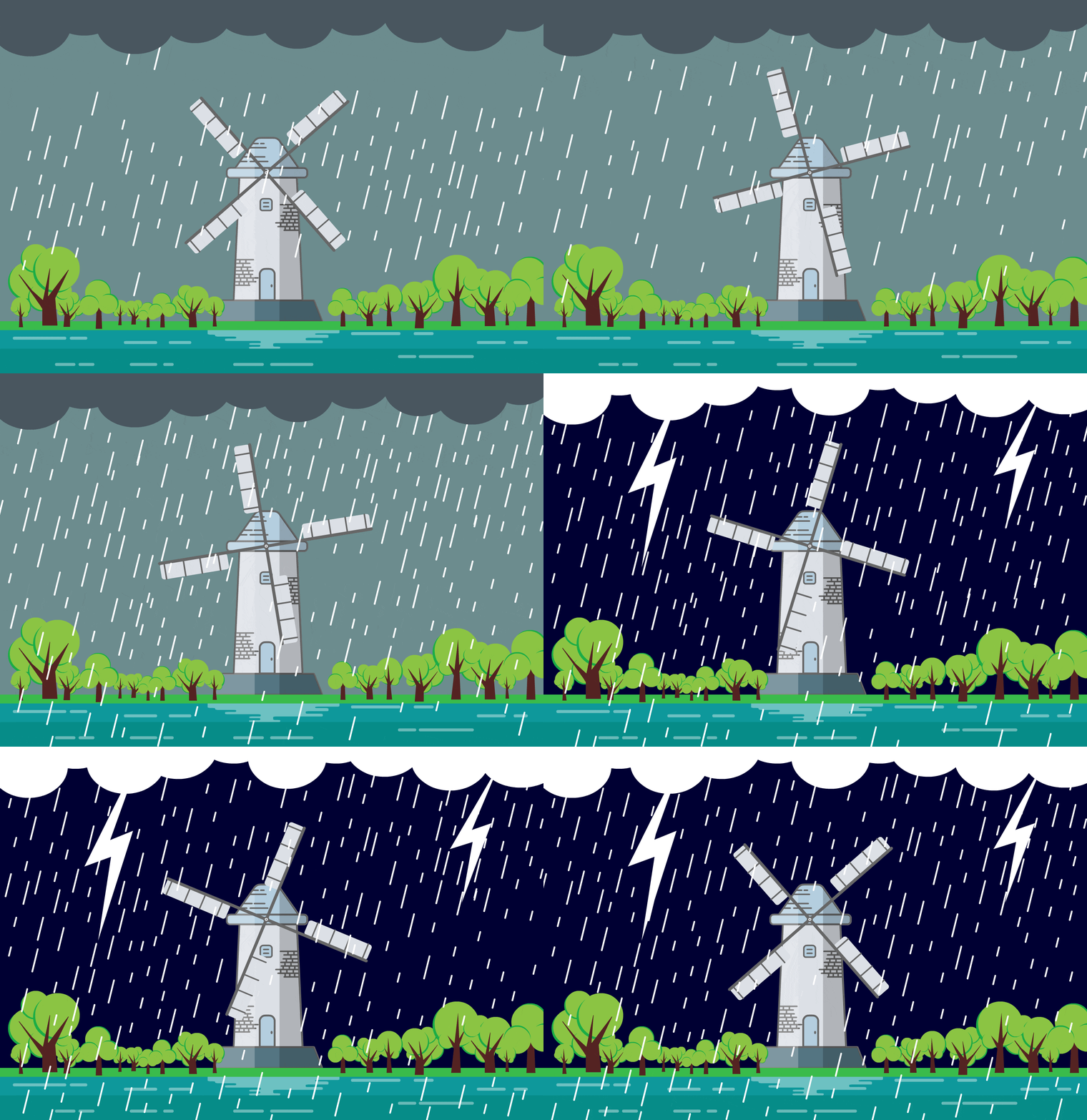
Default compression
532,580 bytes
55% smaller
Above 0.5 MB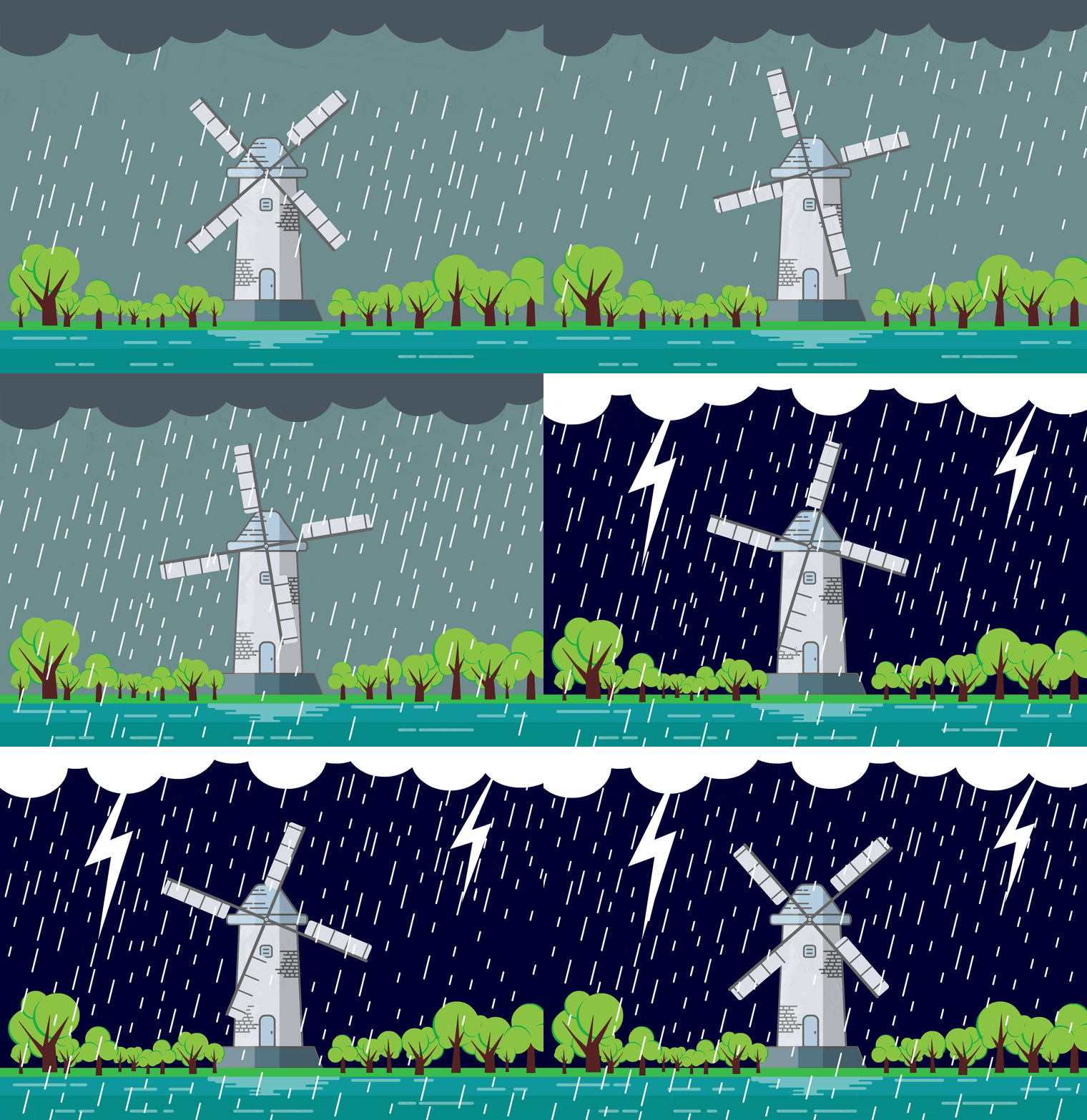
Smallest size
483,860 bytes
59% smaller
Within 0.5 MBCompare captions, movement, and edges in all three previews. The smallest output is useful only if its quality works for your conversation.
Download sample GIFDiscord GIF size limits
For a GIF sent as a chat attachment, Discord currently lists a 20 MB limit for free accounts. Its help center says this increased from 10 MB in August 2026, and that some users may have different limits during experiments. Check the limit shown in your Discord client when sending a file.
An animated custom emoji is a different upload: Discord requires its file to be smaller than 256 KB. A GIF that fits a chat attachment limit can still be far too large for an emoji. This page primarily helps you compress GIFs for Discord chats; it does not resize GIFs to emoji dimensions or manage server permissions.
| Use case | Size reference | How to use this page |
|---|---|---|
| Free-account chat attachment | 20 MB in current official guidance | Start with the 20 MB target and verify your account's limit |
| A smaller sharing budget | 10 MB, 5 MB, or 1 MB | Choose that target to check your output; these are optional budgets |
| A different limit | Your chosen value | Enter a custom target from 0.001 to 50 MB |
| Animated custom emoji | Smaller than 256 KB | Check emoji requirements separately; a 0.25 MB target leaves some size margin |
Sources checked October 4, 2026: Discord File Attachments FAQ and How to Add Emojis on Discord. Paid accounts can have higher attachment limits; confirm the current allowance in Discord.
The target checker uses decimal megabytes: 1 MB = 1,000,000 bytes. It compares the actual output bytes, rather than a rounded size label. “Within target” means the file meets your selected size budget. Discord can still reject uploads for other reasons, including permissions or content restrictions.
How to compress a GIF for Discord
- Add your original GIFs. Select or drag in up to five files, with a 50 MB per-file limit and a 100 MB batch limit. Files stay on your device during compression.
- Choose a size target. Use 20 MB as the current free-chat reference, or select 10 MB, 5 MB, 1 MB, or a custom budget. Changing the target updates size checks without recompressing files.
- Start with Default compression. Click the compression button; choosing a file does not start processing automatically.
- Read each result. Check the output size, savings, and whether it fits the selected target. If it is above the target, the result tells you exactly how many more bytes must be removed.
- Preview, then download. Compare motion, captions, gradients, and transparency before saving the animated
.gifand attaching it in Discord.
The target is a check, not an automatic compression setting. This Discord GIF compressor uses two fixed compression modes and cannot guarantee that every file will reach 20 MB, 5 MB, 1 MB, or any other requested size.
Troubleshooting: GIF still too large for Discord?
Try Smallest size from the original
If Default compression leaves a result above your target, use Try Smallest size on that result. The tool processes the original GIF again with stronger settings, then replaces the output and updates the size check. It does not recompress an already lossy result. Other files in the batch keep their results.
Smallest size applies more lossy compression and reduces the color palette. It can help a reaction GIF fit a tighter budget, but it may make gradients, faces, or small captions look rougher. A smaller file is useful only while the reaction or message remains clear.
Reduce the source when both modes miss the target
Open the source in a GIF editor and shorten the loop, lower its width and height, or crop unused margins. Then add the edited GIF here. Trimming, cropping, and resizing are suggestions for your editor; they are not controls provided by this tool. Long video-like GIFs and files that were already optimized often need a source change rather than another identical compression pass.
File is within target, but Discord still rejects it
Confirm that you are uploading a chat attachment rather than a custom emoji, recheck the account's actual limit, and read Discord's error message. Size checks do not test account permissions, server settings, or content scanning. If a GIF uploads but does not animate, check Discord's animation and accessibility settings and compare with the local preview.
Before you compress: choose a useful quality trade-off
Use Default compression first for text-heavy screen recordings, support replies, and GIFs where facial detail matters. Use Smallest size when a tighter budget is more important than fine detail. Both modes retain GIF animation and output .gif files.
Field notes: review the result in context
Watch a full loop rather than judging a still thumbnail. For a meme, check whether the caption is readable and the punchline arrives quickly. For a product demo, check labels and error text. For an animation with transparent edges, look for halos against light and dark backgrounds. Compare the byte count with your target only after the result remains useful to the conversation.
Discord GIF compressor questions
Can I compress GIFs for Discord without Nitro?
Yes. This free tool does not require Nitro or a Discord login. Your Discord account determines the attachment limit; the compressor helps reduce a file and check it against a size budget before you send it.
Can this GIF optimizer for Discord guarantee a specific file size?
No. The selected target checks the result of your chosen mode. If both modes remain above the target, edit the source duration or dimensions and try again.
Can I compress a GIF to 10 MB, 5 MB, or 1 MB?
You can select any of those targets and see whether the output fits. They are smaller sharing budgets, not the current universal free-account limit. A custom target also supports smaller values, such as 0.25 MB.
Does reducing GIF size for Discord remove the animation?
The output remains an animated GIF. The tool does not convert it to WebP, MP4, or WebM. Preview the full loop before downloading to check the result.
Are my GIFs uploaded to a server?
No. Compression and previews run locally in your browser. Up to five files are processed one at a time to control memory use. Leaving or refreshing the page clears the active queue and previews.
Can I use this for animated Discord emoji?
You can try reducing the bytes of an existing emoji GIF, but you must separately meet Discord's emoji size, dimensions, and permission requirements. This page checks a byte budget and does not create or resize custom emojis.
Related GIF resources
Compare a related tool or read the guide before choosing the compression approach that fits your GIF.